
A guide for SMEs on using Microsoft Power Automate and Teams Approvals to eliminate repetitive admin work.
Monday morning always starts the same way: someone asked for a purchase approval, someone else replied “Seen” in WhatsApp, finance asked for the quote again, and by Friday the supplier was still waiting. Nobody was lazy. The work was just… repeating.
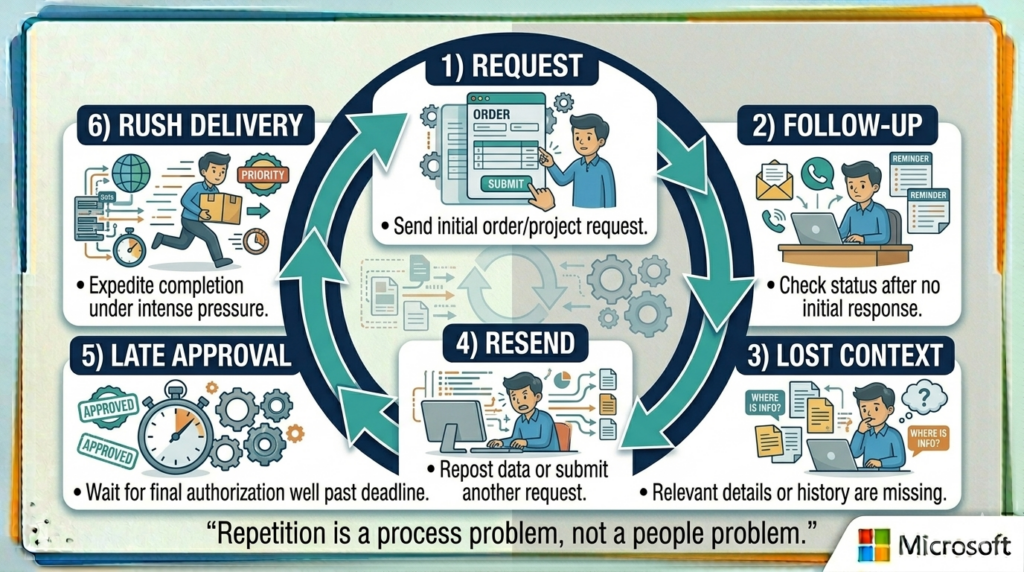
The turning point wasn’t a big “digital transformation.” It was one question from the operations manager: “Why are approvals, onboarding, and reminders still happening manually when the rules never change?” That’s where Microsoft’s automation stack becomes practical: Power Automate to move work forward automatically, Teams Approvals to make decisions in the flow of work, and Copilot to reduce the writing and summarizing that slows teams down.
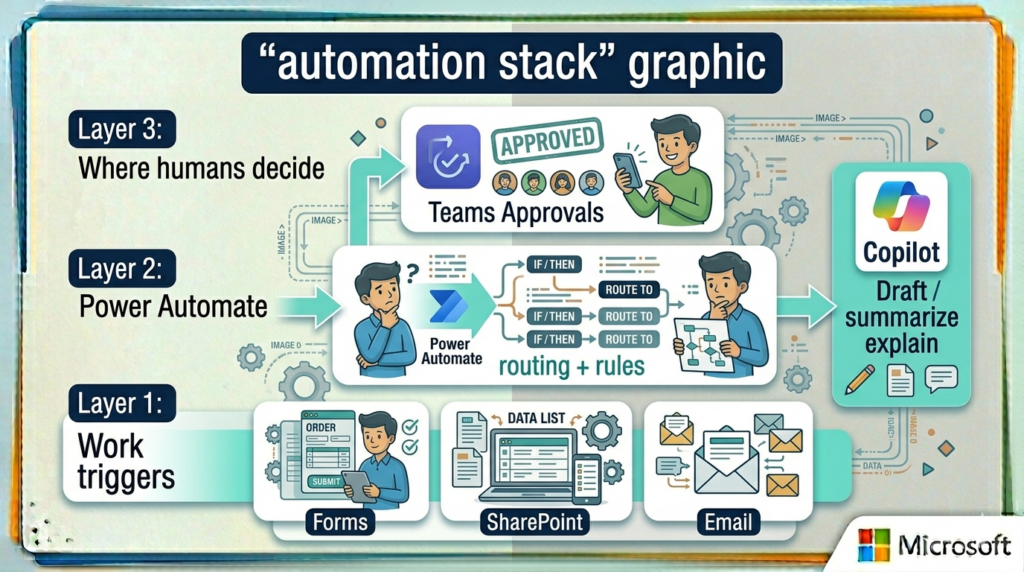
Who this is for: SMEs who already use Microsoft 365 (Teams, Outlook, SharePoint/OneDrive) and feel the pain of “admin drag”—approvals, follow-ups, handovers, and reporting that steals time from sales, service delivery, and leadership.
Quick answer (TL;DR)
- Start with 1 workflow that repeats weekly (invoice approvals, leave requests, onboarding, customer escalations).
- Keep decisions inside Teams using Approvals—so nobody “misses the email.”
- Use Copilot where writing steals time: summarize long threads, draft customer updates, and turn meeting notes into action lists.
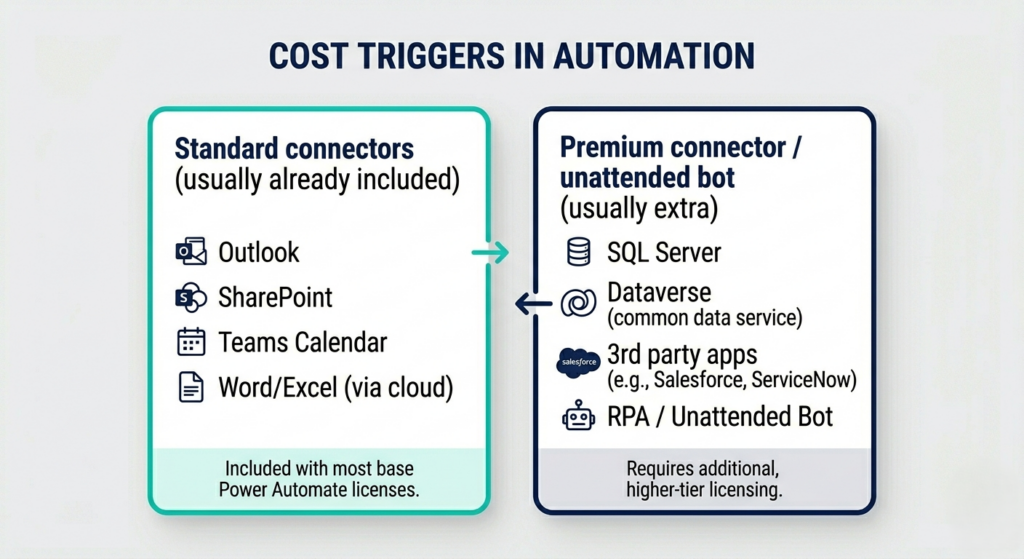
- Licensing rule of thumb: if you stay inside Microsoft 365 apps (Outlook/Teams/SharePoint), you can often begin with what you already have. The moment you need a premium connector (e.g., SQL/Dataverse/third-party systems) or advanced RPA, you usually need a paid Power Automate plan.
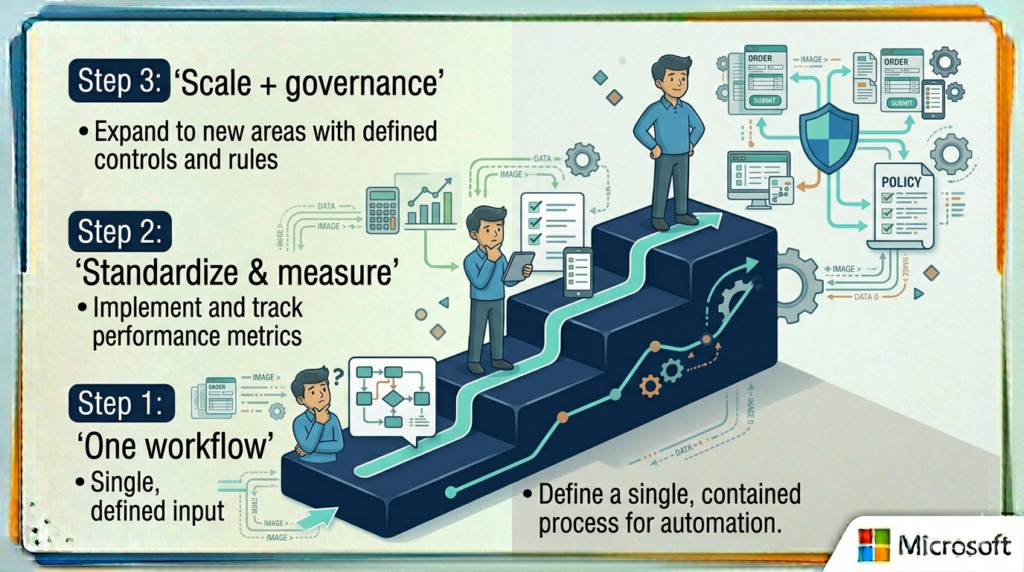
Interactive: Your Automation Pain Score (2 minutes)
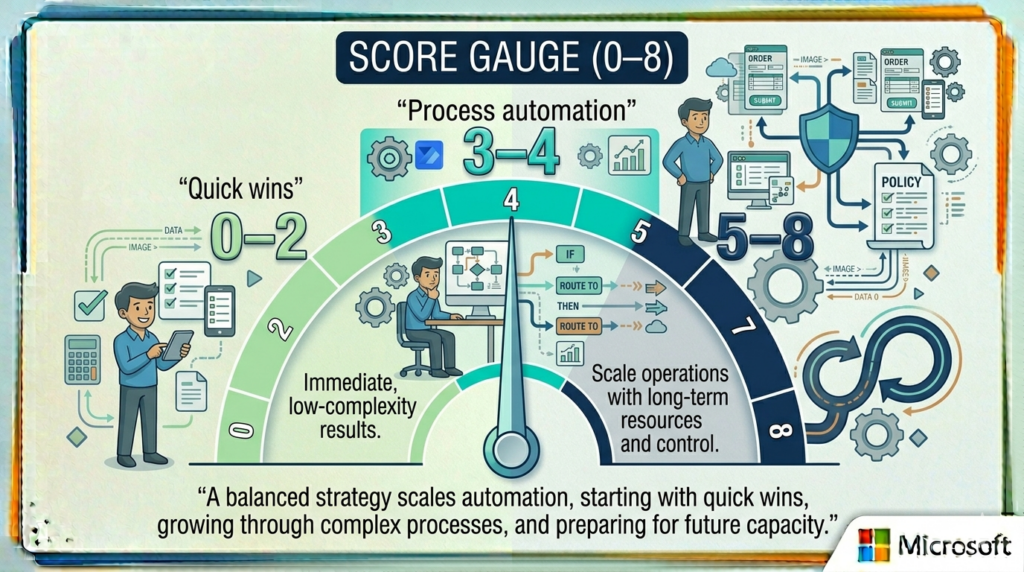
Operational Capacity Audit
Tick what is true for your workflows today. If you score 5 or more, automation is a vital capacity plan for your growth.
Case study: A 6-person finance team that stopped living in the inbox
The problem wasn’t “too many invoices.” It was the approval hunt. A purchase request arrived as a PDF. Someone forwarded it. The approver asked for context. Finance reattached the quote. Days passed. Then the supplier called, and the same request became “urgent” with no extra information.
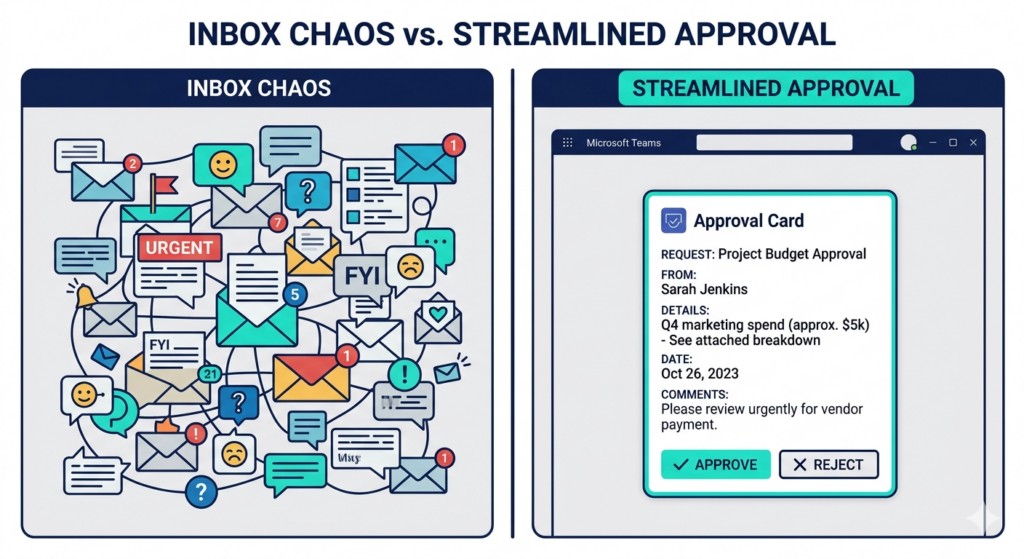
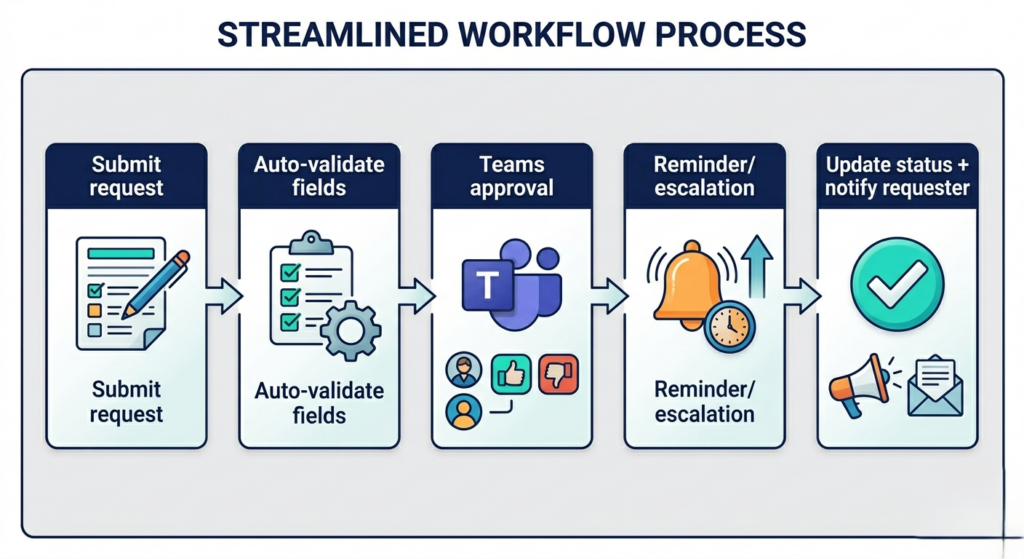
They built one simple flow: when a request is submitted (Microsoft Form or SharePoint list), Power Automate creates an approval in Teams, attaches the documents, and routes it to the right approver based on amount and department. If no response comes in 24 hours, it reminds. If it’s rejected, it sends the reason back to the requester and closes the loop.
The impact showed up fast: fewer follow-ups, faster decisions, and cleaner audit trails. The best part? It wasn’t “automation for automation’s sake.” It was the team getting time back—without hiring.
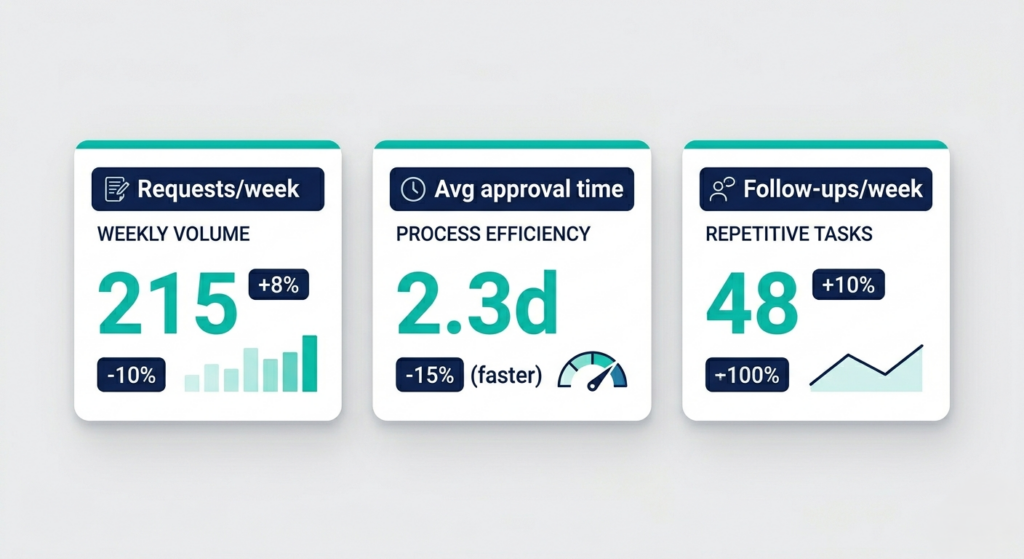
Try this: Before you automate anything, measure one week:
(1) number of approval requests
2) average time to approve
3) number of follow-up messages.
Your first automation should aim to cut one of those by 30–50%.
Three workflows you can copy (and make your own)
Below are three automation patterns that work well in SMEs because they’re predictable, frequent, and measurable. Don’t aim for perfection—aim for repeatability.
Workflow 1: Invoice / Purchase approval that doesn’t get lost
Trigger: a staff member submits a purchase request (Form) or creates a request record (SharePoint list). Outcome: an approval card appears in Teams with the quote attached, and the requester can see the status without chasing.
Smart Approval Architecture
A standardized workflow designed to eliminate manual chasing and decision fatigue.
Standardize requests via Microsoft Forms or SharePoint. By making 5–7 fields mandatory (Amount, Vendor, Reason, Dept, Date), you eliminate “incomplete” submissions before they even start.
Implement conditional thresholds. If the amount is below X, route to a Manager. If it’s above X, escalate to a Director/CFO instantly. No more “who do I send this to?”
The outcome is a high-visibility card in Microsoft Teams with quotes attached. Approvers see the “Why” immediately, and requesters see the status in real-time without chasing.
We build in politeness. One reminder after 24 hours; automatic escalation after 48. Every decision requires a “Reason” to ensure audit-ready transparency.
Leverage AI to generate one-paragraph summaries for approvers (“What is being bought and why now?”) and draft automated supplier updates if approval is delayed.
Workflow 2: Employee onboarding that actually finishes
Trigger: HR submits a new hire form. Outcome: IT gets tasks (account, laptop, MFA), finance gets payroll tasks, and the manager gets a “Day 1 plan” checklist—without HR sending 10 follow-up emails.
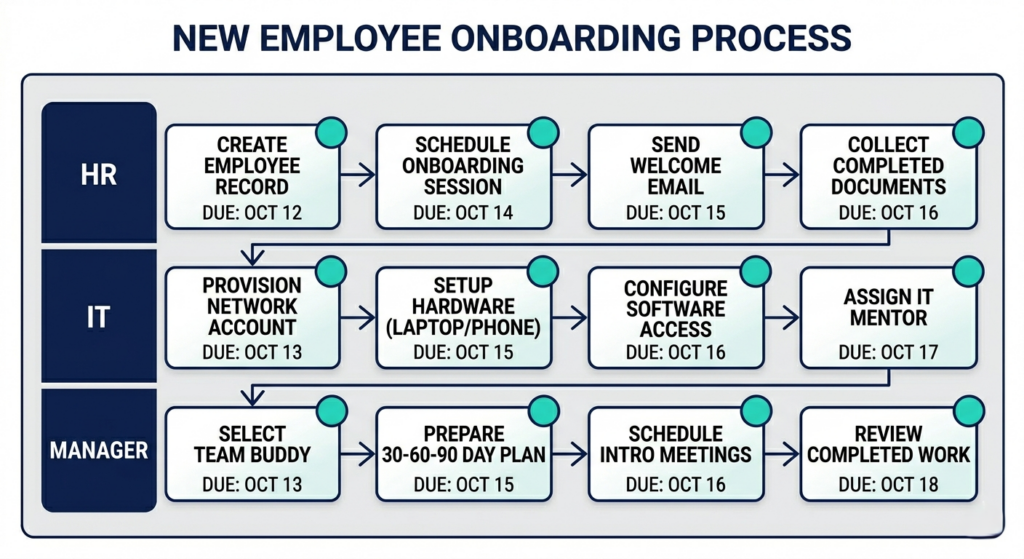
Unified Onboarding Synchronization
One form. Zero follow-ups. A perfect Day 1 for every new hire.
HR Trigger
Basics collected once: Role, Start Date, Apps, and Device needs.
Auto-Distribution
IT gets hardware tasks. Finance gets payroll setup. Manager gets the Day 1 plan.
Ready-State Check
Teams sends a “Ready/Not Ready” status card to the manager 24hrs before start.
Copilot drafts the Welcome Email and generates a custom first-week agenda (“Training + Stakeholders”) based on the specific job role.
Workflow 3: Customer escalation that doesn’t depend on memory
Trigger: a support email arrives with certain keywords, a form submission, or a flagged ticket in your tracker. Outcome: a Teams channel post is created, the right people are tagged, and the customer gets a consistent acknowledgement message.
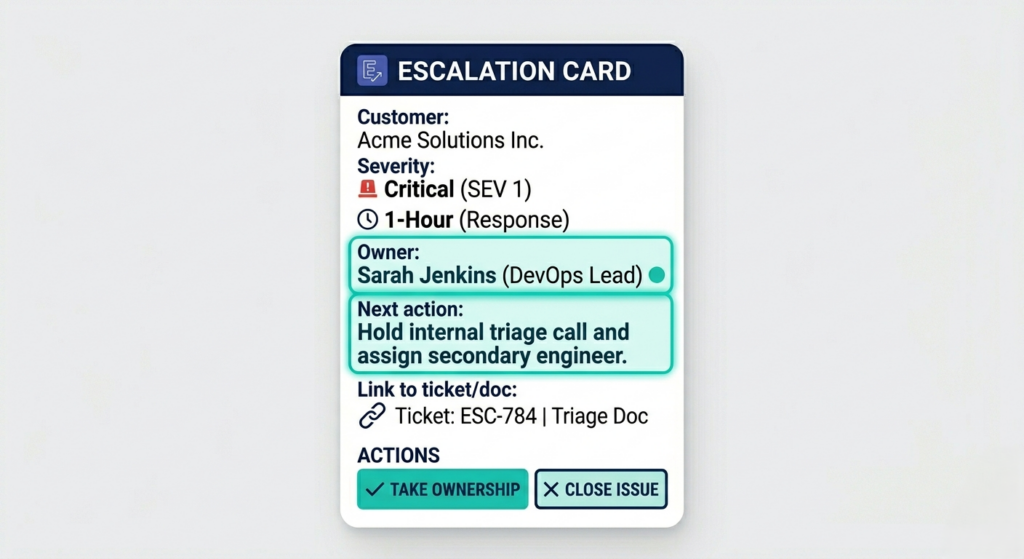
Single Source of Truth
Eliminate data silos and fragmented updates with a unified synchronization layer.
The Repository
The Signal
The Bridge
Licensing in plain English (so you don’t get surprised later)
Most SMEs start automating with the tools already inside Microsoft 365—because Outlook, Teams, and SharePoint connectors cover a lot of real-world use cases. Cost surprises usually happen for two reasons: (1) someone adds a premium connector (to a database, a third-party app, or Dataverse),.
(2) the business needs unattended automation (bots running without a person).
Strategic Investment Anchors
Current Microsoft standard pricing models for enterprise-grade automation.
Power Automate Premium
- Unlimited DPA & Cloud Flows
- Attended RPA Capabilities
- Process Mining Insights
Microsoft 365 Copilot
- Natural Language Automation
- Thread Summarization
- Automated Drafting & Review
Governance (keep automation helpful, not chaotic)
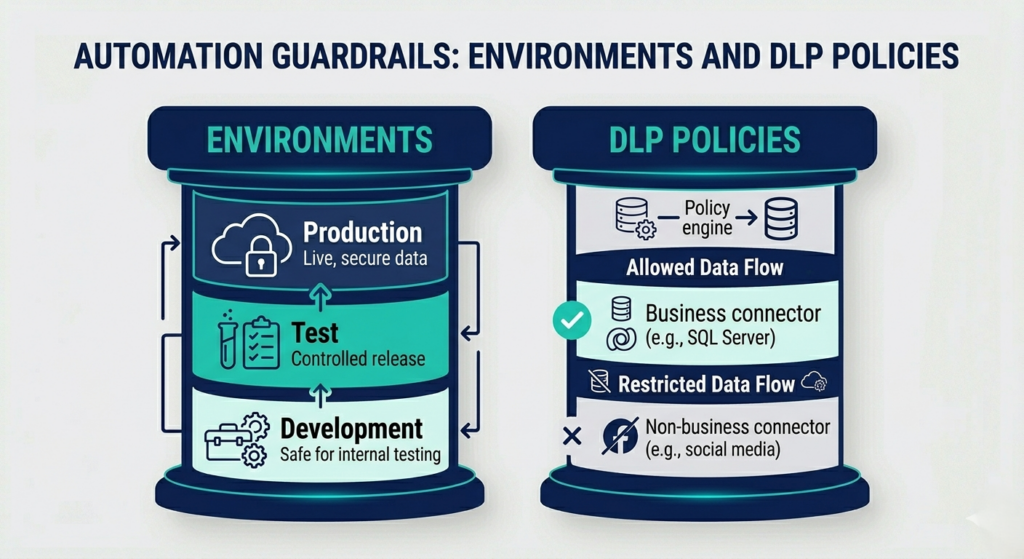
Automation scales quickly—sometimes faster than your ability to support it. Two simple guardrails prevent “workflow sprawl”: (1) use a basic environment strategy (at least Dev/Test vs Production), and (2) set DLP policies so business data can’t accidentally flow into personal connectors. This keeps your wins safe as more people start building.
Interactive: Pick your first automation (choose one)
Pick Your First Automation
Select the priority that aligns with your current business goals.
Cashflow First
Purchase & invoice approvals in Teams with automated reminders.
- Standardize invoice intake
- Threshold-based routing
- Auto-reminder logic
People First
Automated onboarding checklists that confirm readiness before Day 1.
- Unified New Hire Form
- Cross-dept task assignment
- Manager Readiness Card
Customer Trust First
Escalation workflows with AI-generated customer updates.
- Owner assignment logic
- Copilot thread summaries
- Tone-perfect customer drafts
If you want to roll this out safely, Asentric IT can help you pick the first workflow, design it around your real approvals and roles, implement the guardrails (environments + DLP), and train your team to request and approve work inside Teams—so the automation sticks.